

The Starting Point Check: Finding Where a Student Should Begin
Every subject in Primer is a ladder of units, from the earliest skills up to the most advanced. When a student picks up a subject, the question is where on that ladder their lessons should begin. Start too low and they spend weeks on things they already know. Start too high and the first lessons are a wall. The Starting Point Check is a short activity the student does once per subject that measures the answer instead of guessing it. This article covers how to offer one, what your student will see, how to read the results, and how to set the starting unit yourself whenever you'd rather.
On this page
Where you'll see the choice
Open your student's workspace, go to the Curriculum tab, and open a subject. At the top of that subject's learning path, Primer asks a single question.
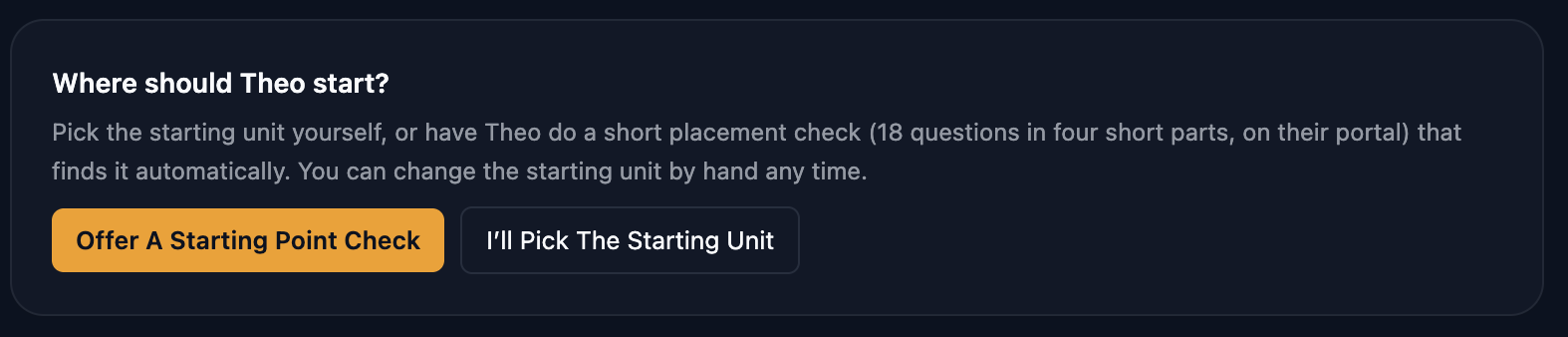
The two buttons do what they say. Offer A Starting Point Check sends a short activity to the student's portal and sets the starting unit from the result. I'll Pick The Starting Unit lets you click the unit yourself. Neither choice is permanent: you can change the starting unit by hand at any time, and you can run a check later on a subject where you picked by hand.
You'll see the same question when you add a custom topic. If Primer is still building that topic's path, you can still choose right away. A check you offer then is queued, and it goes to the student's portal the moment the path is ready.
Offering a check
Click Offer A Starting Point Check. Before the check goes out, Primer asks you one quick question so it knows roughly where to begin asking. For an academic subject it's "Where do you think [your student] is right now?" with the choices A Bit Behind, About Right For Grade 3 (or whatever their grade is), Ahead, and I Don't Know. For a custom topic it's "How much does [your student] already know about this?" with New To This, Knows Some, Knows A Lot, and I Don't Know.
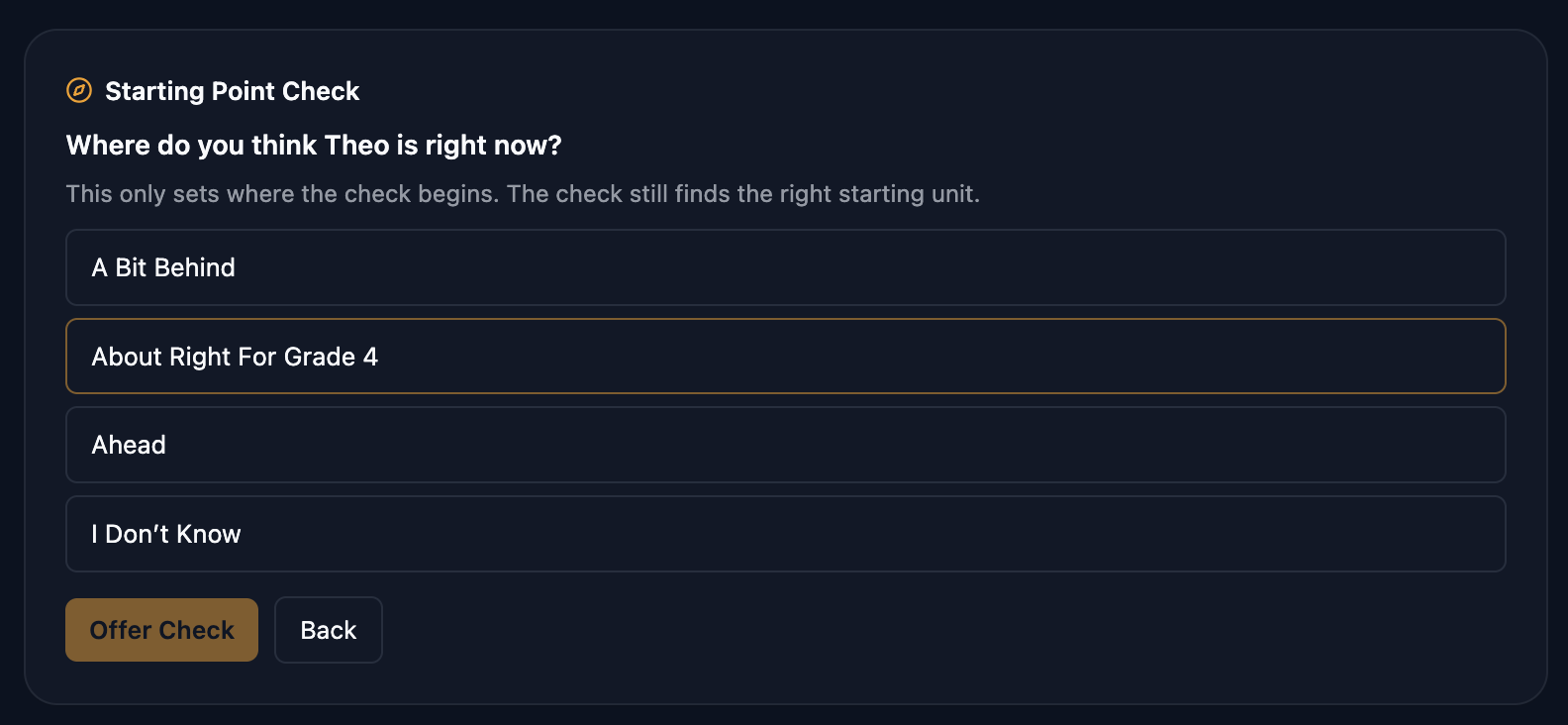
Your answer only nudges where the first questions come from, by one step at most. The check still finds the right starting unit on its own, so a wrong guess can't throw it far off, and I Don't Know is a perfectly good answer. Click Offer Check and the panel confirms: "Offered. It's on [your student]'s portal now."
While the check is waiting or in progress, the panel shows its status and a Cancel Check button. Lessons keep flowing in the meantime from the current starting unit; nothing pauses while you wait. The starting unit updates when the check is done.
What your student sees
The check lives on the student's portal, so they need a way in: either their own sign-in (see Inviting a Student to Their Own Portal) or Student View, the button in your parent workspace that opens the portal on your own device so you can hand it over.
On the portal, a highlighted card appears above their lessons: Find Your Starting Spot: [Subject], with a Start button (or Continue if they've already begun).

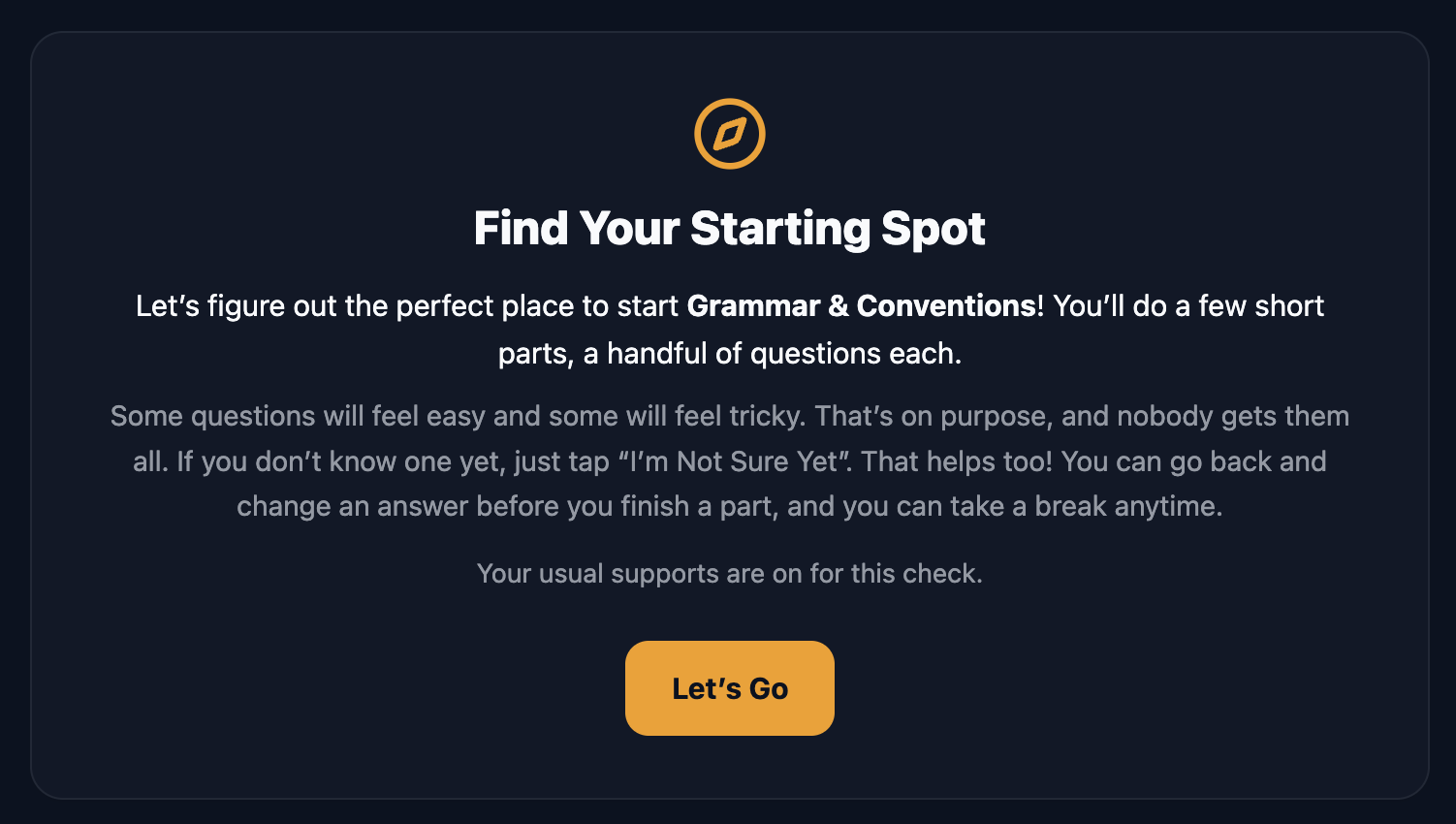
Tapping it opens a short ready screen that explains the activity in the student's own terms: a few short parts, a handful of questions each, some will feel easy and some will feel tricky, nobody gets them all, and I'm Not Sure Yet is always an okay answer. Then they tap Let's Go.
The shape of the check
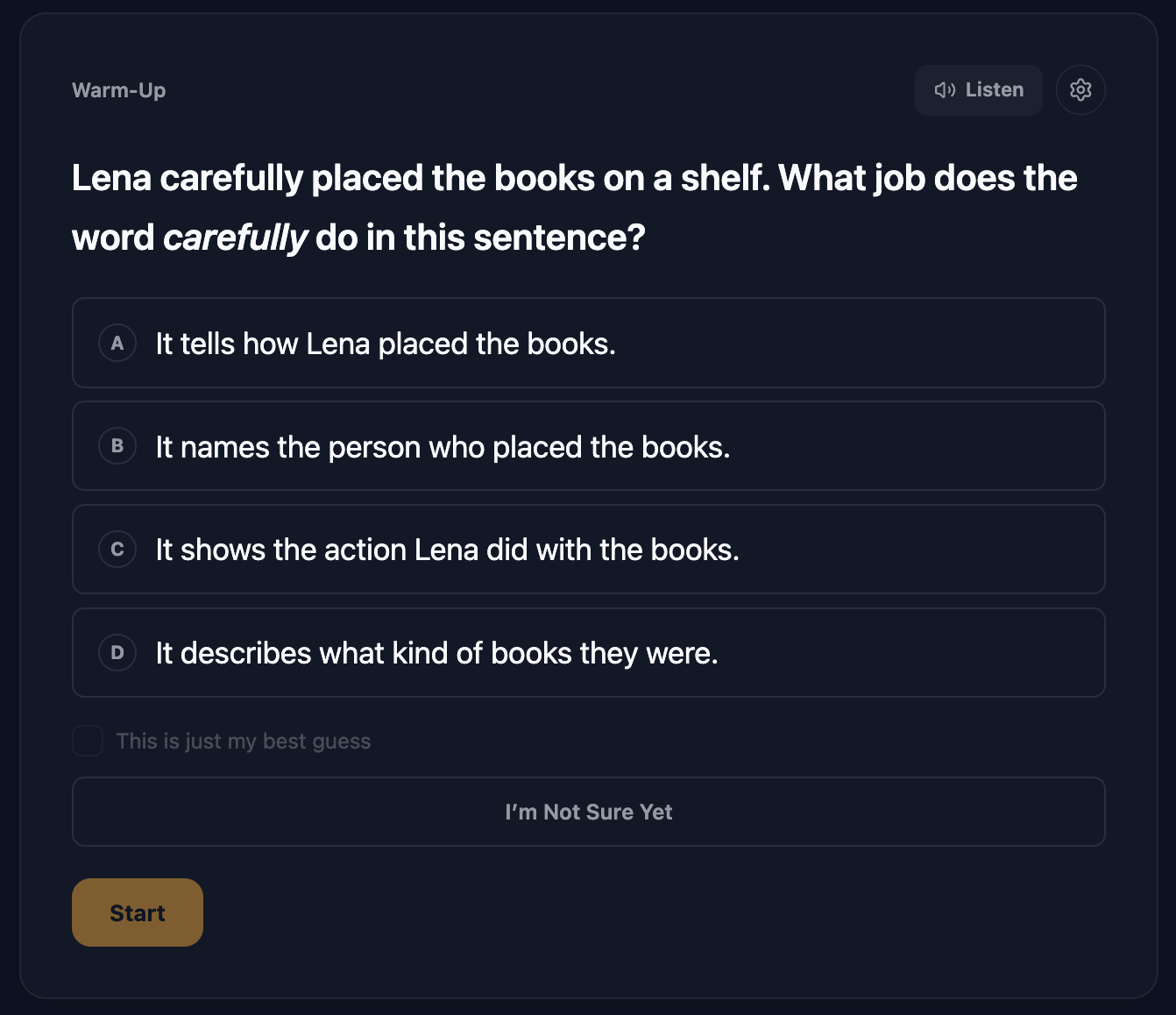
The check is 18 questions in four short parts: a one-question Warm-Up to show the format, then Part 1, Part 2, and Part 3. It's adaptive: each part is written based on how the one before it went, so the questions move up or down the ladder until Primer has pinned down where the student's solid ground ends. Most students finish in 10 to 15 minutes. There's no timer and no time limit.
Every question is multiple choice with four options, plus two extras the student can use freely:
- I'm Not Sure Yet instead of guessing. This is actually the clearest signal the check gets, and the student is told it helps.
- This is just my best guess, a checkbox for when they answered but aren't confident.
Within a part, the student can go Back and change an answer right up until they tap Finish This Part. Spelling, phonics, and decoding questions are dictation style: the student taps Hear The Word and the word is spoken, never shown. Between parts, the owl shows an encouraging line while the next part is prepared, which usually takes a few seconds.
Supports carry over
The same reading controls from lessons are available during the check: read-aloud, the dyslexia-friendly font, text size, and highlighting. If your student has supports on file from intake or the Accommodations tab, they're on automatically, and the ready screen says so: "Your usual supports are on for this check." Questions are also written with those supports in mind.
Breaks and coming back
The student can stop at any time. Progress is saved after each finished part, so a break between parts costs nothing. Leaving partway through a part means that part starts over when they come back. Once started, a check stays open for seven days; after that it expires and you can offer a new one.
What happens when it's done
The student sees You Did It! and which unit they're starting at, then a Back To My Portal button. That's all they see.
On your side, three things happen automatically:
- The starting unit is set. The student is placed at the first unit just past the highest level they showed they could handle.
- Earlier units are marked Tested Out. On the subject's learning path, every unit the check credited carries a Tested Out badge, so you can tell them apart from units mastered through lessons.
- Lessons move to the new starting unit. The next batch is generated from there.
There's also a safety net. If the student scores under 50% on either of their first two graded lessons at the new starting unit, Primer puts the tested-out units back into the path and moves the starting unit back. Nothing the student earned in lessons is changed, and the results page explains what happened under the heading We Moved The Starting Point Back.
Reading the results
You can get to a check's results from a few places:
- The View Results button on the subject's panel in the Curriculum tab, once the check is done.
- The Starting Point Results link at the top of the subject's learning path.
- The Progress tab, under Reports, in a card called Starting Point Checks that lists every completed check with a View Results button.
The results page opens with a plain summary: how many questions the student answered and when, and a reminder that this is a starting point, not a verdict. Below that, a Result card shows the starting unit and how many units were tested out, what you said before the check (for example, "You said they're a bit behind for grade 3."), the concepts the student was Confident with, anything Worth revisiting, and a By Skill Area row that flags each strand of the subject as Confident, Building, or Worth A Look. A Supports Applied row lists which supports were on.
Then comes the part most parents find useful: Question By Question. For each question you see the question itself, all four options, which one your student picked, the correct answer, and tags for Marked As A Guess, Said Not Sure Yet, or Not Counted. Wrong answers come with a Likely mix-up note explaining the misconception that probably produced that answer, and a How to solve it walkthrough. For dictation questions, you see the word that was spoken.
Picking the starting unit yourself
Click I'll Pick The Starting Unit, then click the unit on the learning path where the student should begin and choose Start Here. Primer asks you to confirm, because the units before it will be skipped. You can restore any skipped unit later.
This is also how you adjust a starting unit after a check, or at any other time. The learning path is always yours to edit: click any unit for options like Start Here, Do Next, Mark Mastered, Skip, and Restore, and drag units to reorder them. If you change your mind about picking by hand, the panel has a link back: Use A Starting Point Check Instead.
Running it again
Once a check is complete, the subject's panel offers Run Again alongside View Results. Re-running makes sense after a long break, or if the first lessons at the placed unit feel too easy or too hard. The new result replaces the old check's credit, but anything the student mastered through lessons stays mastered. Only one check can be live per subject at a time; offering again while one is waiting just points you at the existing one.
Settings and limits
- Turning it off. On the student's Format tab, under Permissions & Pacing, the switch Starting Point Check for new subjects controls whether checks are offered for this student. It's on by default. Click Save Changes after toggling it.
- Topics the student adds themselves. When a student adds a topic from their portal, a check is offered automatically for each new subject that can take one: right away if their topic setting is automatic, or after you approve the topic if it's set to suggest. You can still set the starting unit by hand on each subject's path.
- Grade level. There's no hard minimum, but the check works best for grade 2 and up. For kindergarten and grade 1 students the panel says so and leaves the choice to you.
- Subjects. Nearly every academic subject and custom topic can take a check. French and Spanish can't yet, and neither can a very short custom topic; for those, the panel simply shows the pick-it-yourself option.
If something looks wrong
- "The check could not be offered right now," or a message about credits or billing. A check needs the same thing a lesson does: an active plan or available credits, and a student who isn't paused. The message tells you which one to fix in billing settings.
- The student sees "All Done For Now." That check was canceled or expired. Offer a new one from the subject's panel and it will appear on their portal again.
- The student sees "This check is taking a break for now." The student's credits or plan ran out partway through. Once billing is sorted, the Try Again button on that screen picks up where they left off.
- The placement feels off. Open the results page and read the Question By Question section; it usually explains the result. Then either click a different unit and choose Start Here, or Run Again. And remember the safety net: if the first two lessons go badly, Primer moves the start back on its own.
For anything else, your student's teacher is a good first stop (see Emailing Your Student's Teacher), or contact support.